App overview
-
Here's what the app look likes:
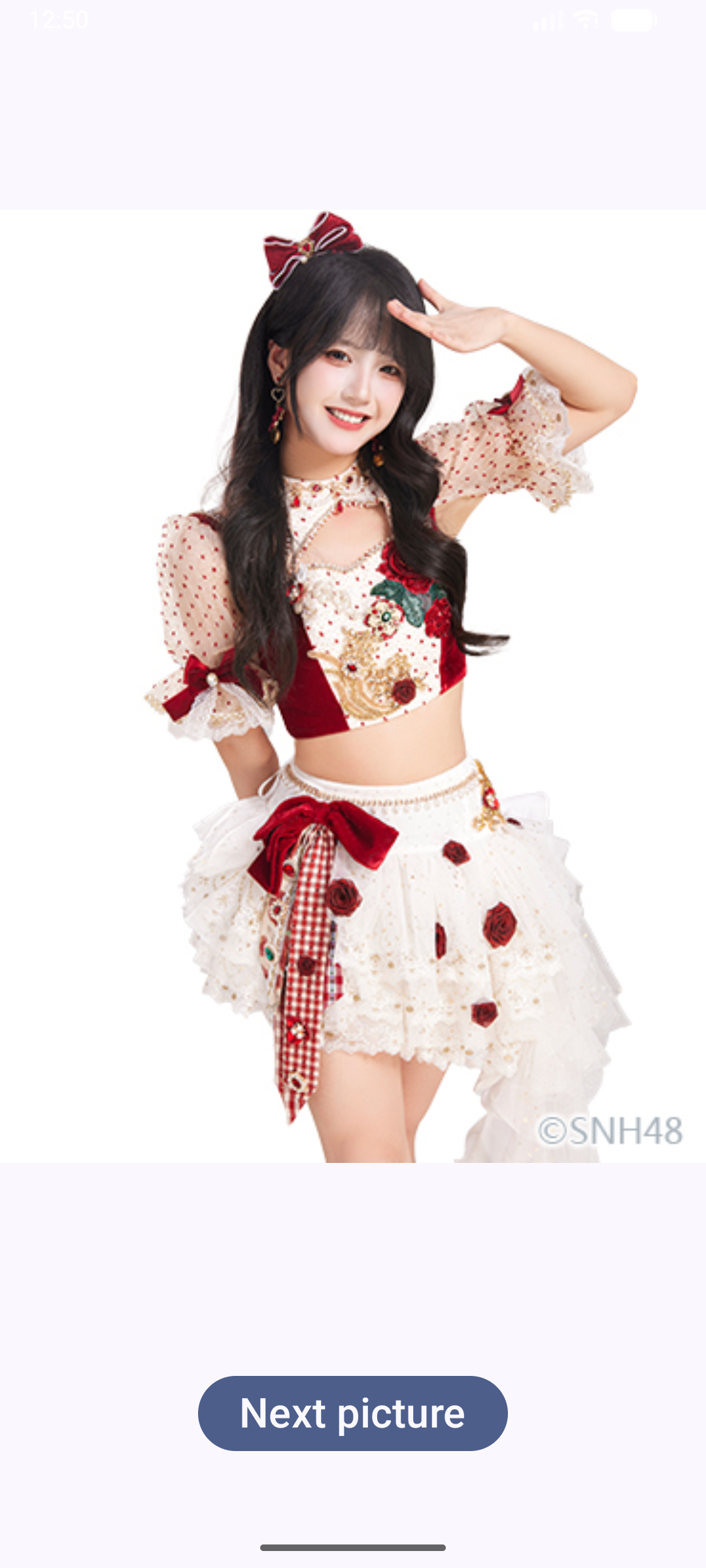
-
Composable functions
-
Composable functions are the basic building block of a UI in Compose. A composable function:
-
Describes some part of your UI.
-
Doesn't return anything.
-
Takes some input and generates what's shown on the screen.
-
-
Annotations
-
Annotations are means of attaching extra information to code. This information helps tools like the Jetpack Compose compiler, and other developers understand the app's code. An annotation is applied by prefixing its name (the annotation) with the @ character at the beginning of the declaration you are annotating. Different code elements, including properties, functions, and classes, can be annotated. Annotations can take parameters. Parameters provide extra information to the tools processing them.
-
The onCreate() function
-
The onCreate() function is the entry point to this Android app and calls other functions to build the user interface. In Kotlin programs, the main() function is the entry point/starting point of execution. In Android apps, the onCreate() function fills that role.
-
The setContent() function
-
The setContent() function within the onCreate() function is used to define your layout through composable functions. All functions marked with the @Composable annotation can be called from the setContent() function or from other Composable functions. The annotation tells the Kotlin compiler that this function is used by Jetpack Compose to generate the UI.
-
Modifier object
-
Compose uses a Modifier object, which is a collection of elements that decorate or modify the behavior of Compose UI elements.
fun Pic(modifier: Modifier = Modifier) { }The function allows a modifier parameter to be passed in. The default value of the modifier parameter is a Modifier object, hence the = Modifier piece of the method signature. The default value of a parameter lets anyone who calls this method in the future decide whether to pass a value for the parameter. If they pass their own Modifier object, they can customize the behavior and decoration of the UI. If they choose not to pass a Modifier object, it assumes the value of the default, which is the plain Modifier object. You can apply this practice to any parameter.
-
The mutableStateOf function
-
Compose apps transform data into UI by calling composable functions. If your data changes, Compose re-executes these functions with the new data, creating an updated UI—this is called recomposition. Compose also looks at what data is needed by an individual composable so that it only needs to recompose components whose data has changed and skip recomposing those that are not affected.
-
State and MutableState are interfaces that hold some value and trigger UI updates (recompositions) whenever that value changes. The reason why mutating a variable does not trigger recompositions is that it's not being tracked by Compose. To add internal state to a composable, you can use the mutableStateOf function, which makes Compose recompose functions that read that State.
-
The remember
-
remember is used to guard against recomposition, so the state is not reset.
Note that if you call the same composable from different parts of the screen you will create different UI elements, each with its own version of the state. You can think of internal state as a private variable in a class. The composable function will automatically be "subscribed" to the state. If the state changes, composables that read these fields will be recomposed to display the updates.
-
The fun Pic()
-
@Composable
fun Pic(modifier: Modifier = Modifier) {
    var result by remember { mutableStateOf( 1) }
    val imageResource = when(result) {
        1 -> R.drawable.b1
        2 -> R.drawable.b2
        else -> R.drawable.b3
    }
    Column(modifier = modifier, horizontalAlignment = Alignment.CenterHorizontally) {
          Image(painter = painterResource(imageResource),
          contentDescription = result.toString(),
          modifier = Modifier.size(800.dp)
        )
        Button(
            onClick = {
                result = if (result==3)
                    1
                else
                    result+1
            },
        ) {
            Text(text = stringResource(R.string.next_pic), fontSize = 24.sp)
        }
    }
}
-
MainActivity
-
class MainActivity : ComponentActivity() {
    override fun onCreate(savedInstanceState: Bundle?) {
        super.onCreate(savedInstanceState)
        setContent {
            B48Theme {
                Surface(
                    modifier = Modifier.fillMaxSize(),
                    color = MaterialTheme.colorScheme.background
                ) {
                    Pic()
                }
            }
        }
    }
}
-